
While you can manage your Night Owl Protect Cloud plan from the portal ( https://protectcloud.nightowlsp.com/), you must use the Night Owl Protect App to access and save your recordings. To do so, follow these simple steps:
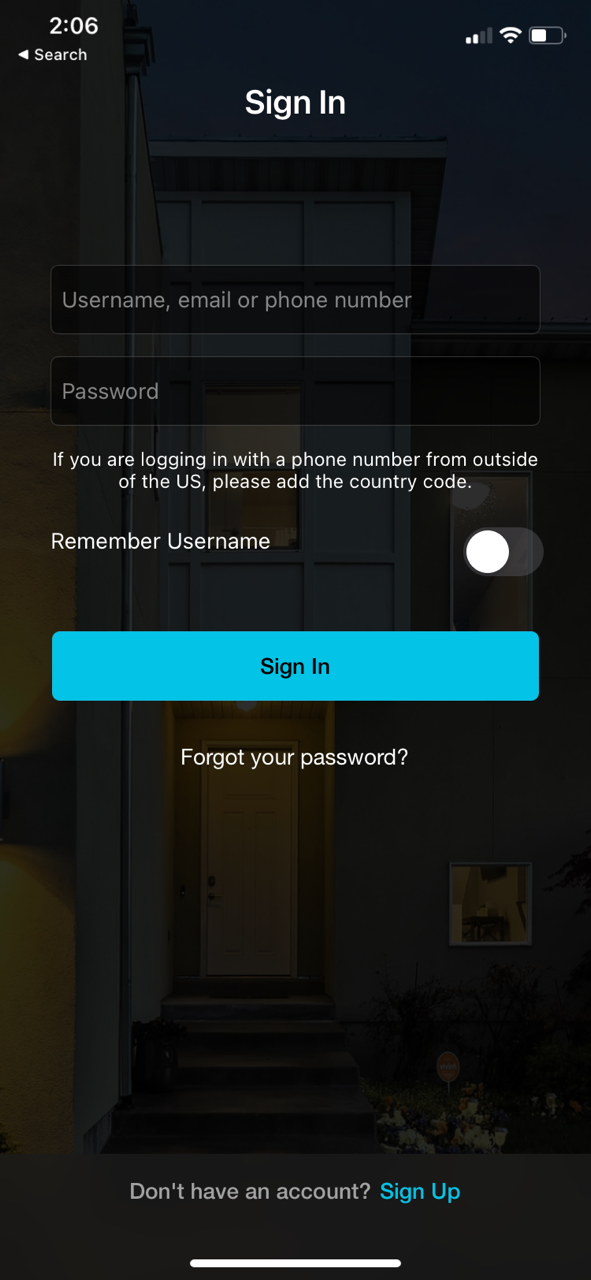
STEP 1: Open the Night Owl Protect App from your mobile device and Sign In. If you are already signed in, proceed to the next step.
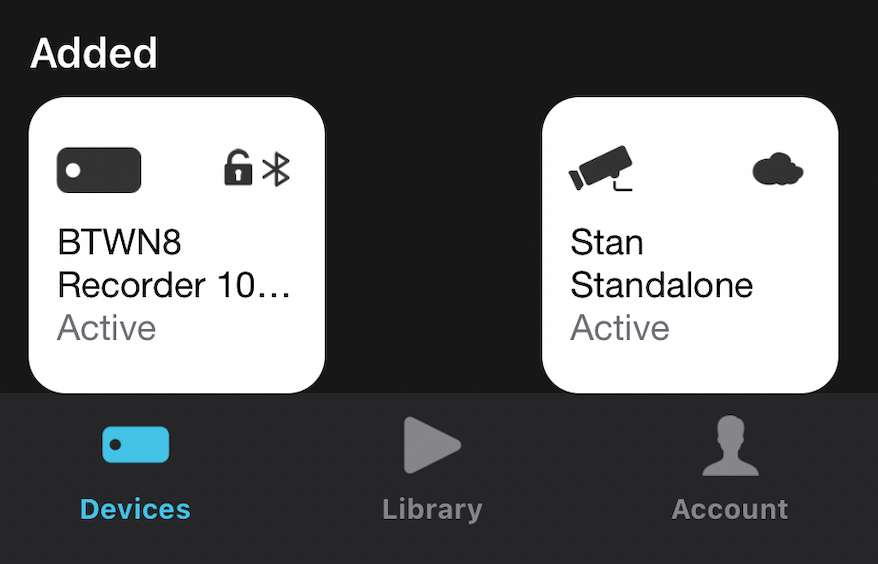
STEP 2: Once logged in, you will see all added devices you have. Those with an active Cloud plan will have a small cloud in the upper right-hand corner. Tap on the device you wish you to access recordings for.
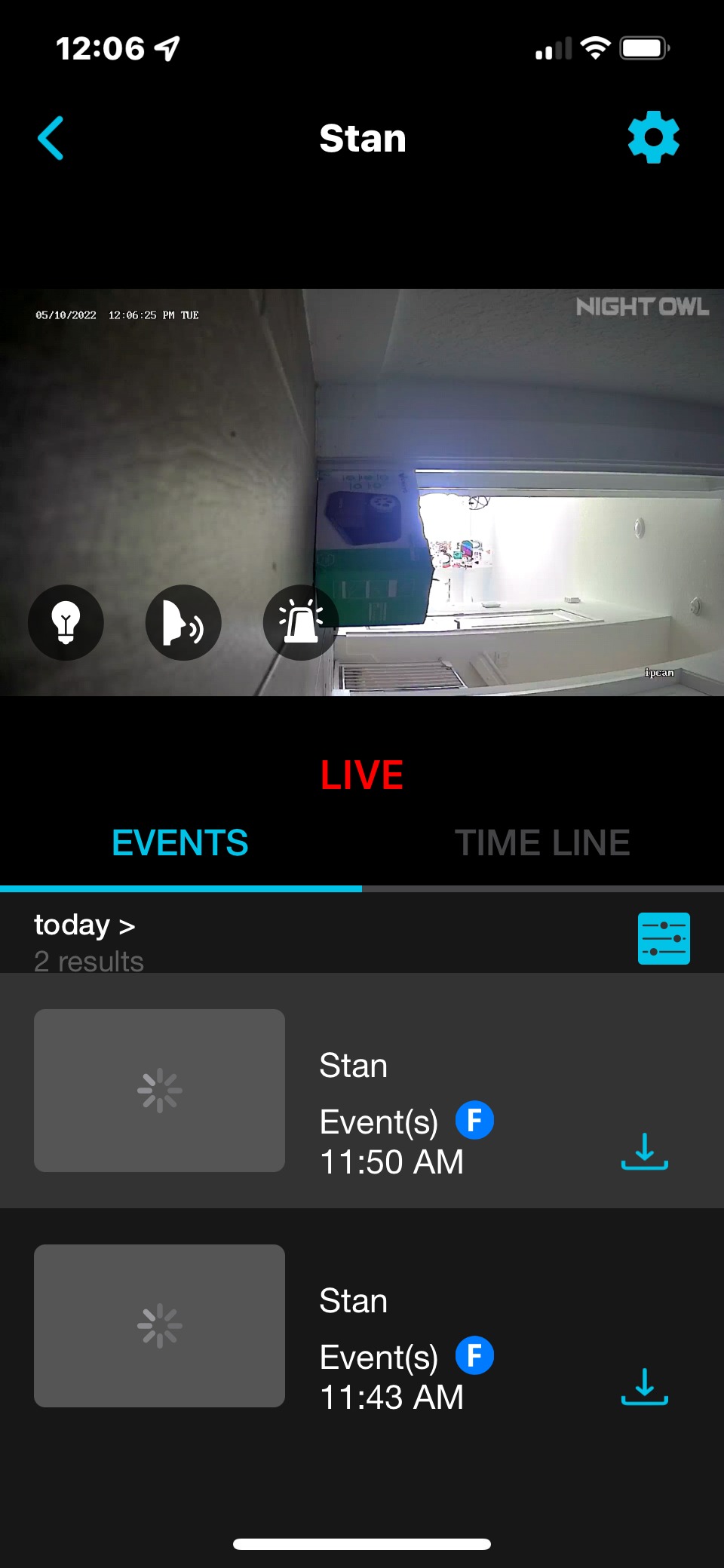
STEP 3: To verify you are viewing cloud recordings tap the filters icon.

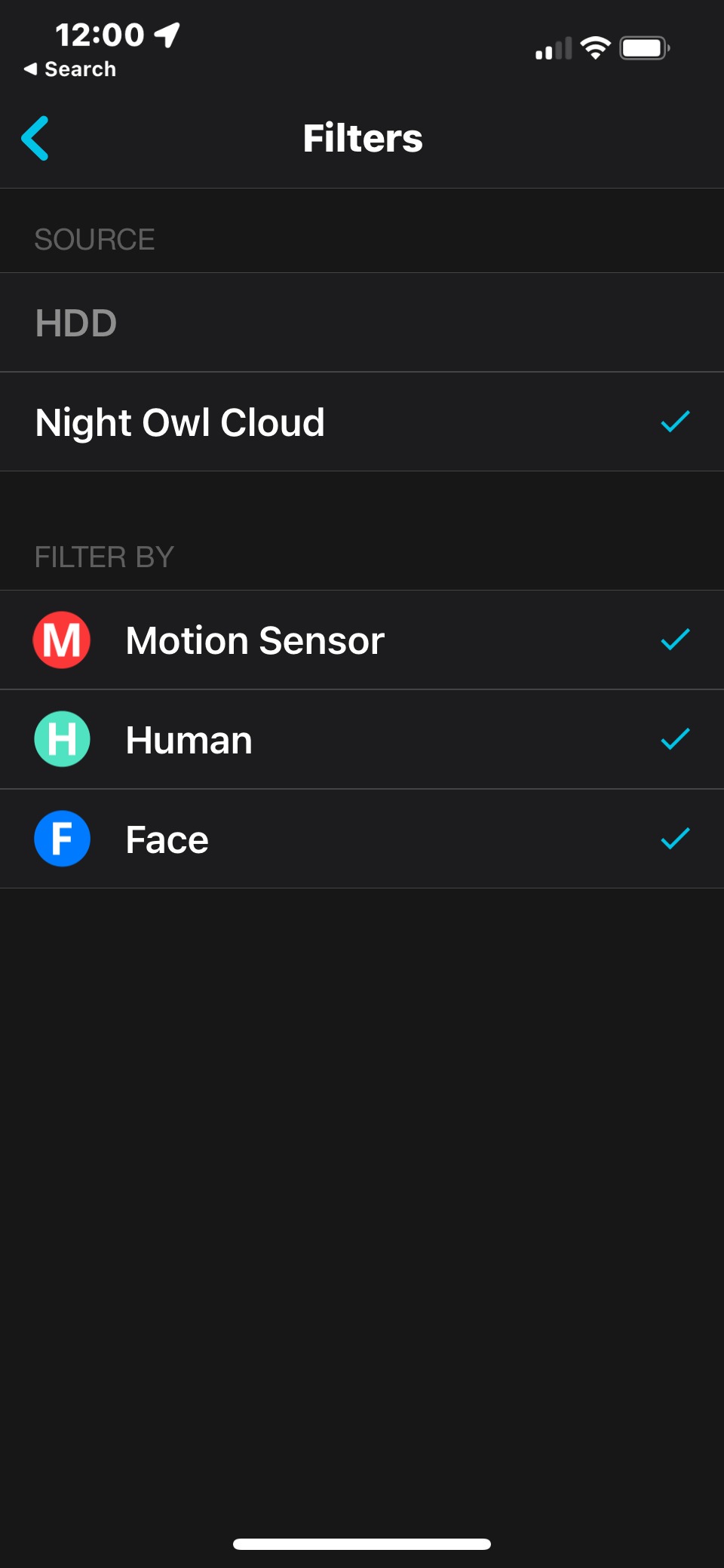
STEP 4: Verify there is a blue checkmark next to Night Owl Cloud. Once verified, use the return arrow to go back to the Events screen.
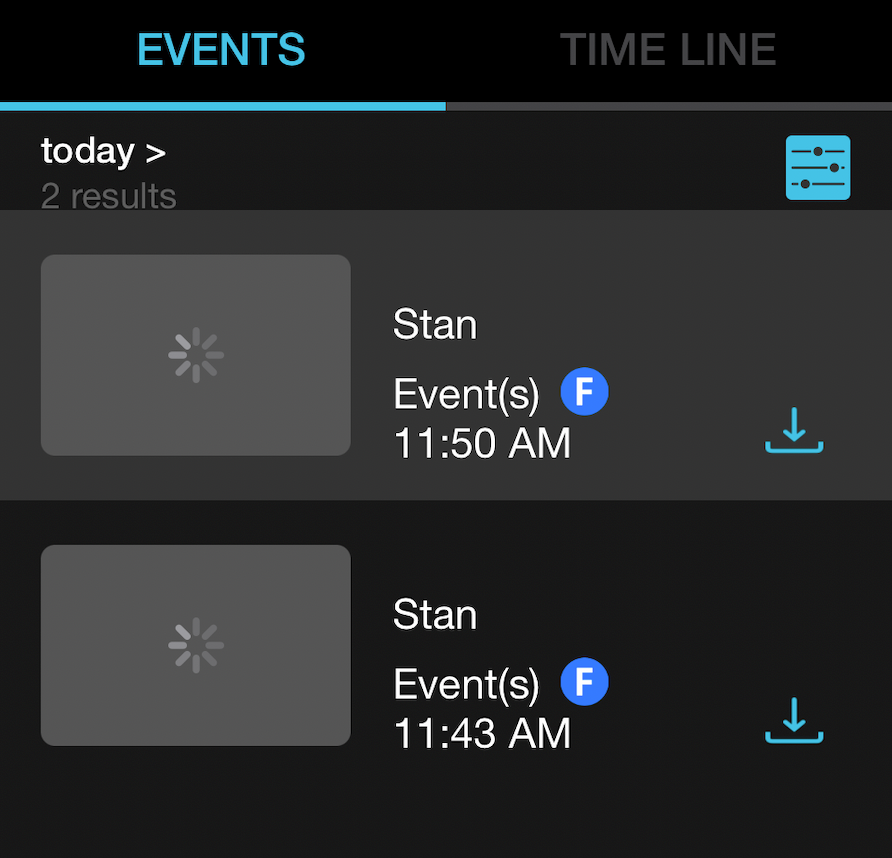
STEP 5: The events (recordings) you see listed are safely stored in the Night Owl Protect Cloud. To save a recording long-term, tap the download arrow next to the event you wish to save.

Thank you for choosing Night Owl!