 | The steps below show you how to add a BWNIP2 Series wire free camera to your BTWN8 Series Wi-Fi NVR using the Night Owl Protect App (preferred method). For instructions on adding your wire free camera to your recorder from a TV or Monitor, refer to your BTWN8 Series Manual by clicking HERE. |
IMPORTANT: Ensure you have downloaded the Night Owl Protect App to your Smart Device and have added your BTWN8 Series Wi-Fi NVR to the app. For more information on downloading and setting up your account, please view the video tutorial below.
0000000000000000000000000000000000000000000000000000000000

Adding a Wire Free Camera from an Android Smart Device:
Section 1
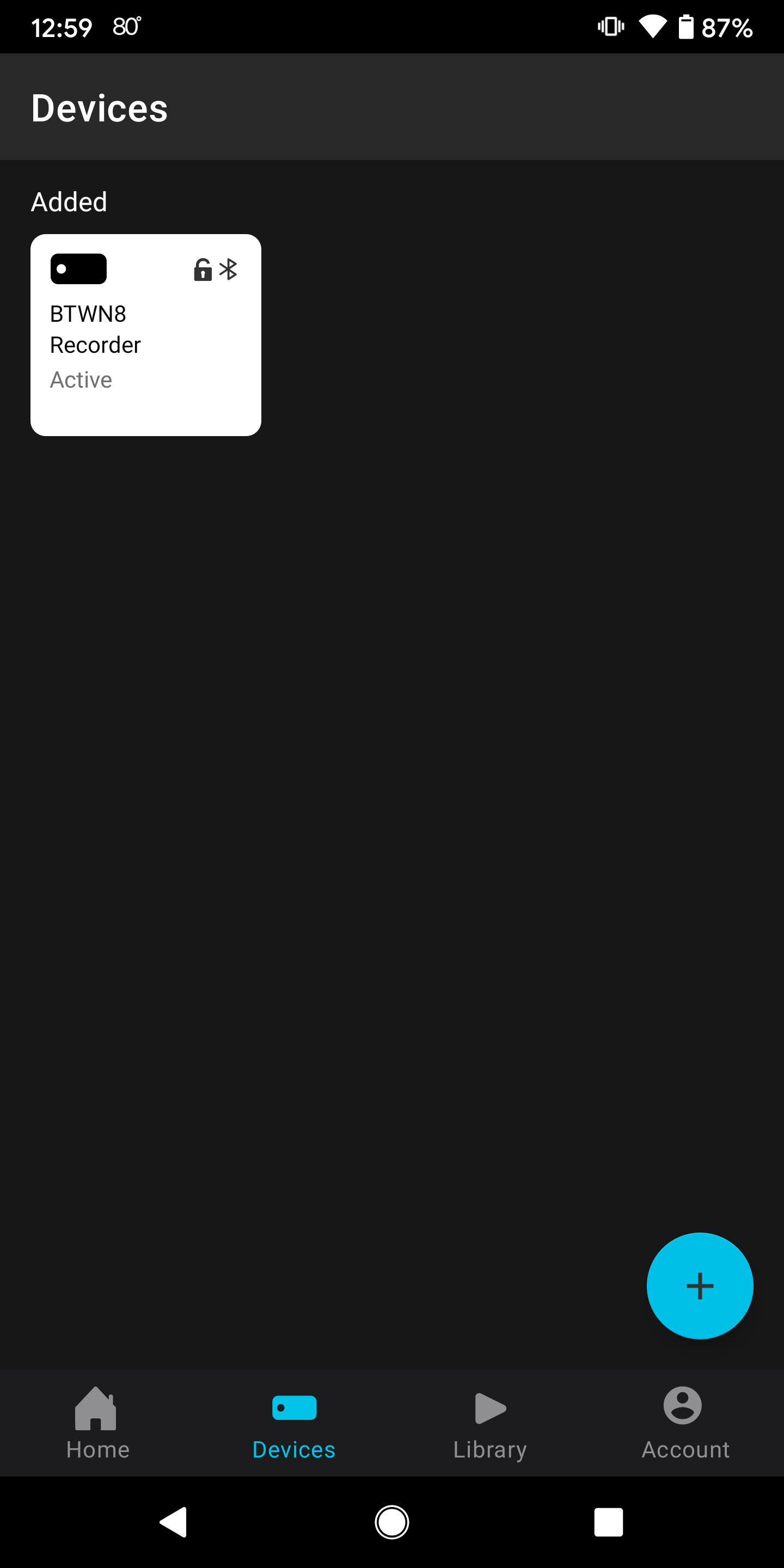
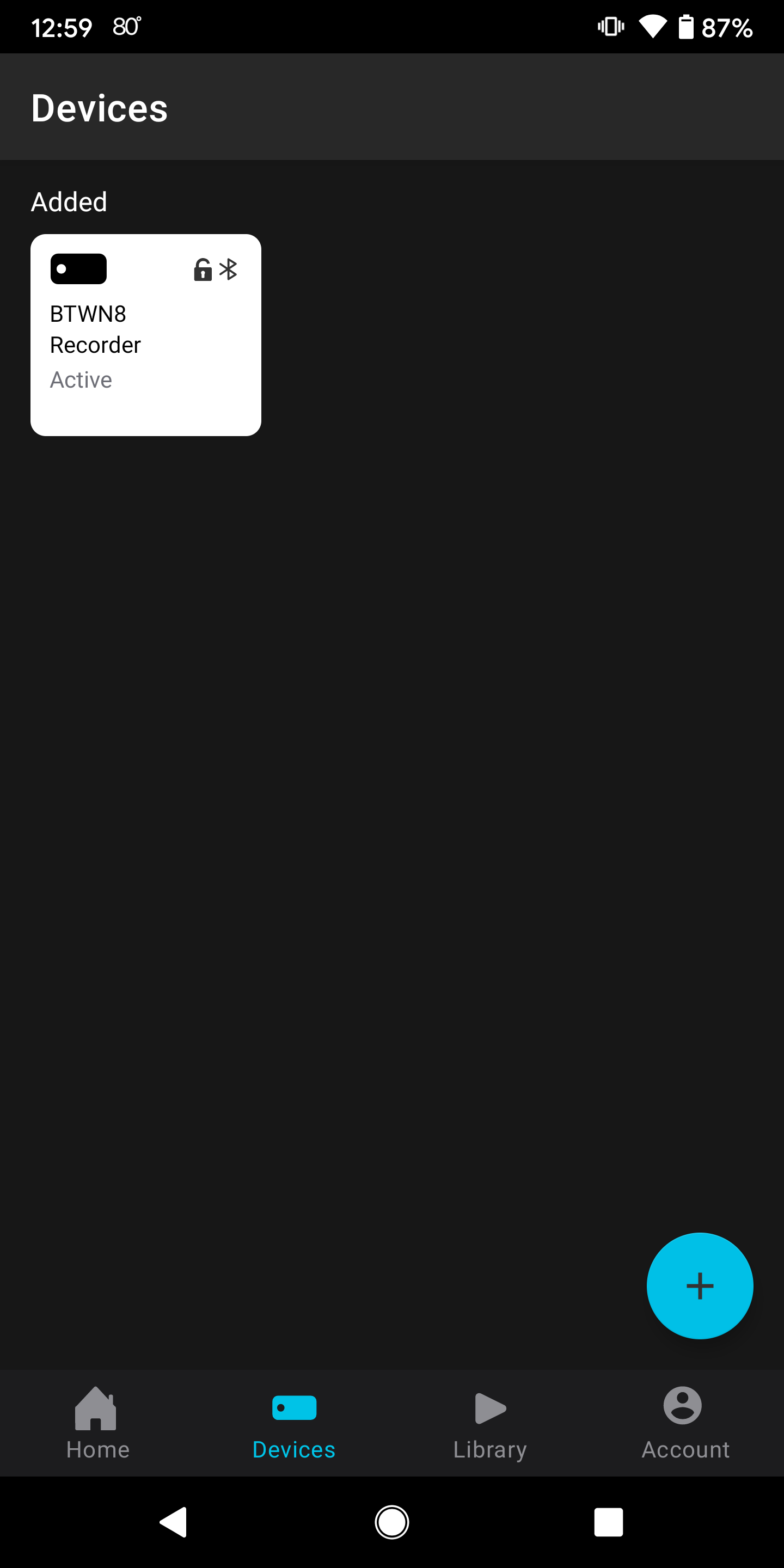
- Open the Night Owl Protect App and tap on your BTWN8 Series recorder from the list of devices.
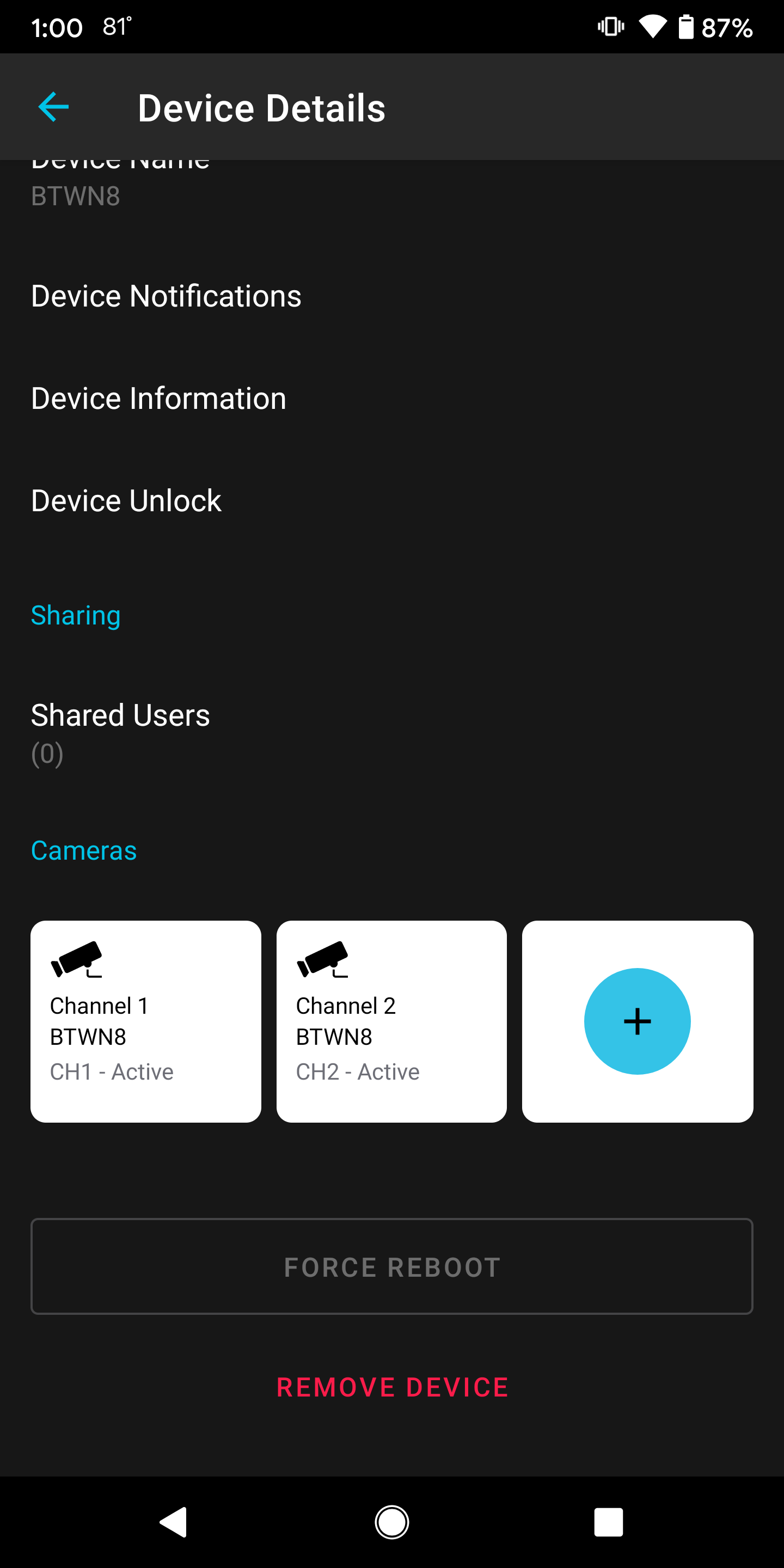
- At the bottom of the Device Details page, you will see cameras that have been added to the recorder.
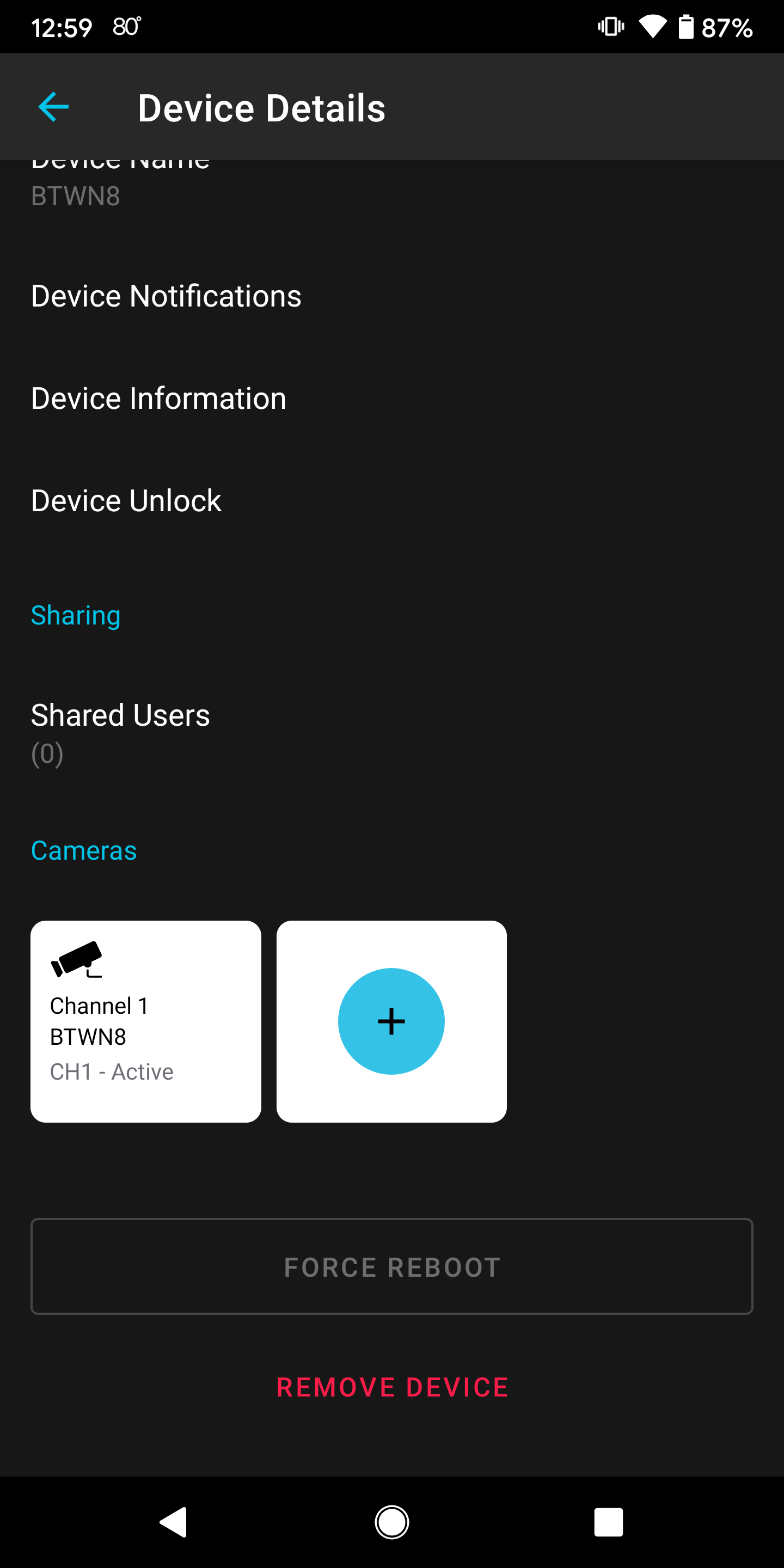
- Tap on the "+" sign to add your wire free camera.

- Ensure your camera is in pairing mode and tap "Continue."
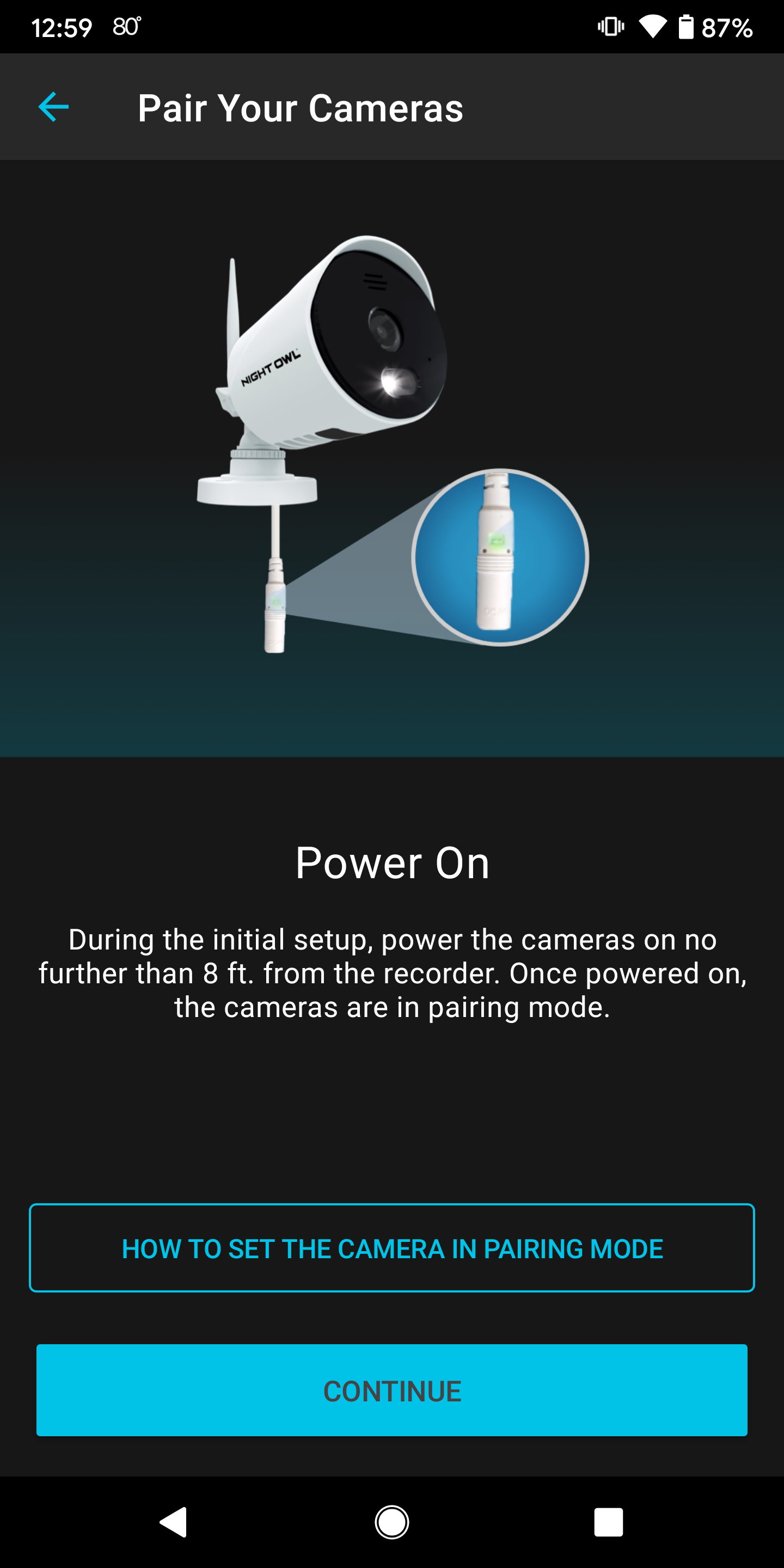
NOTE: Your wire free camera should be in pairing mode once the batteries and cartridge have been inserted into the camera. However, if the camera is not in pairing mode, tap "How to Set the Camera in Pairing Mode" or refer to your wire free camera Quick Setup Guide (QSG).
- The recorder will now search for your wire free camera and will display a list of already paired cameras.
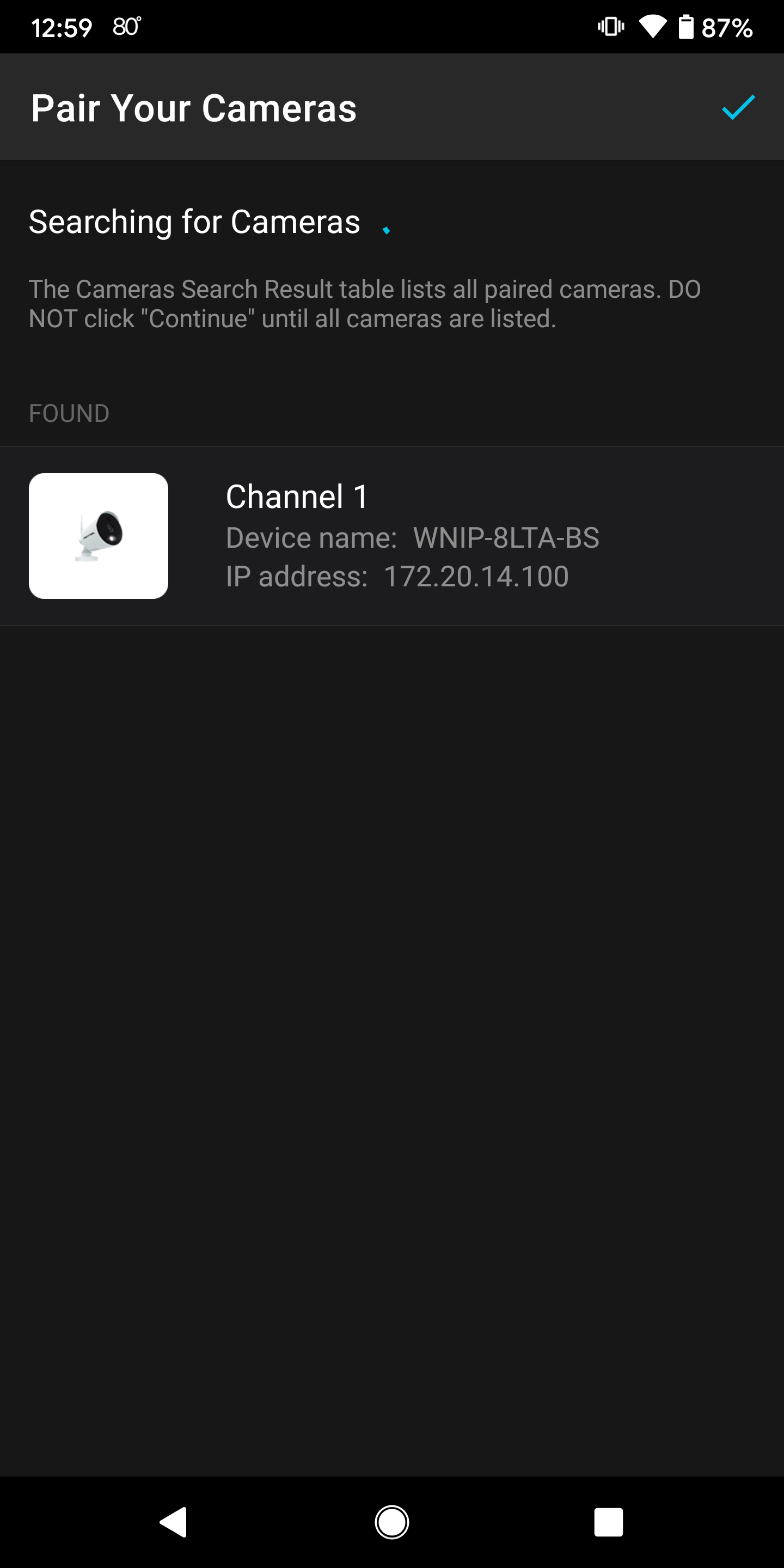
- When the recorder locates your wire free camera, you will hear "Please be patient as camera connects to WiFi".
- Once the camera has been paired, you will hear "Woo Hoo! Setup is now complete!" and the new camera will now show in the list of cameras.
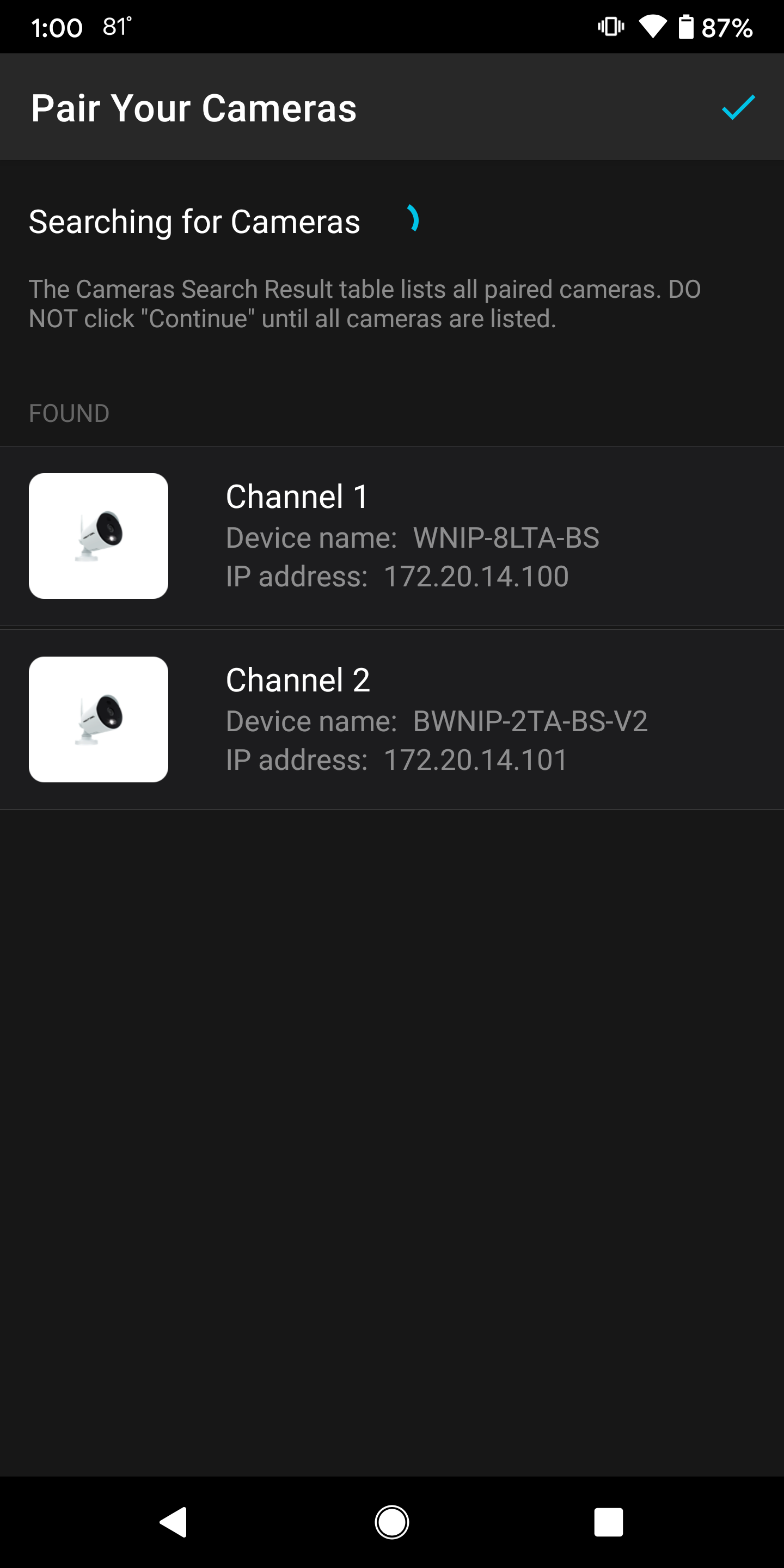
- Tap the " ✓ " at the top of the page to end the pairing process.

- Return to the Device Details page for your BTWN8 Series recorder and you will now see the wire free camera is paired. Tap on the camera to begin viewing!

Adding a Wire Free Camera from an iOS Smart Device:
Section 1
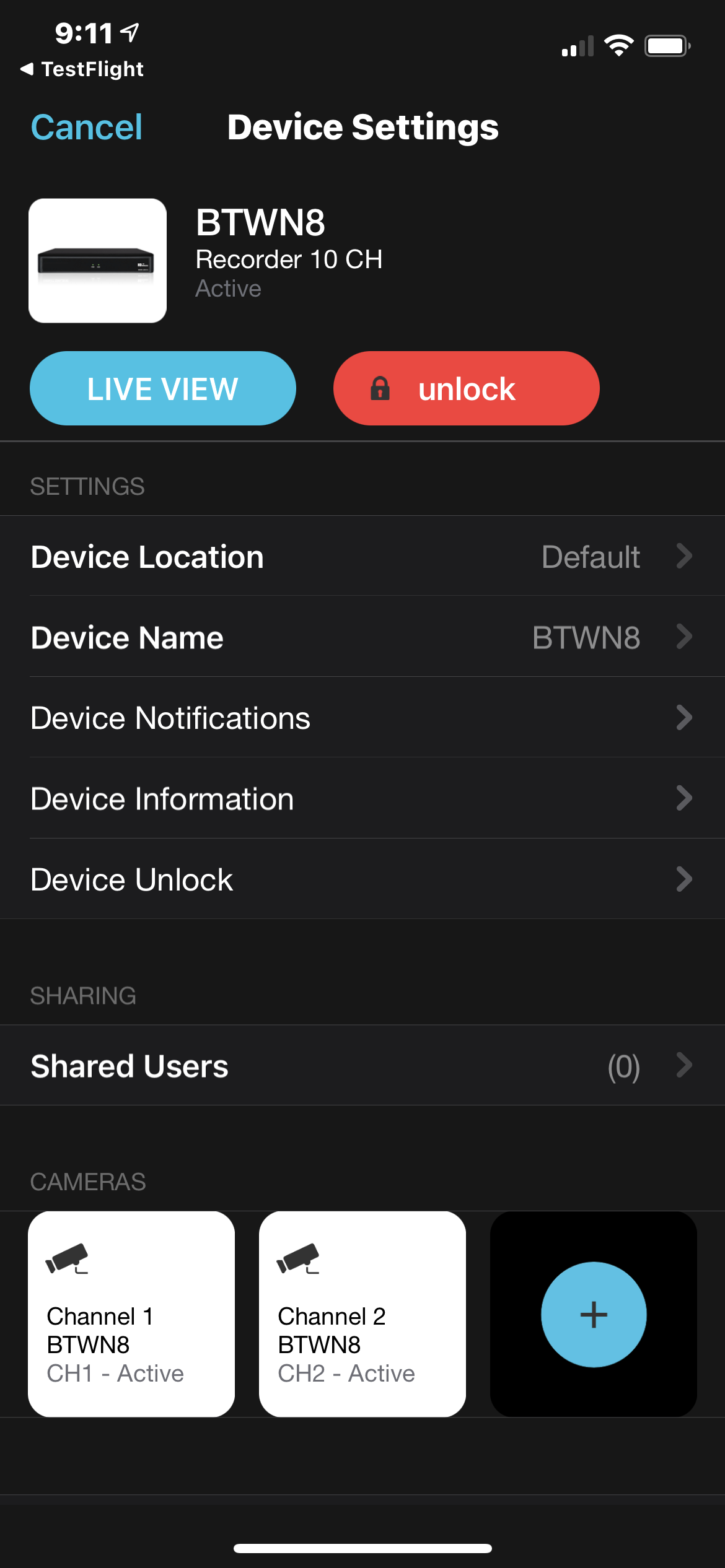
- Open the Night Owl Protect App and tap on your BTWN8 Series recorder from the list of devices.
- At the bottom of the Device Settings page, you will see cameras that have been added to the recorder.
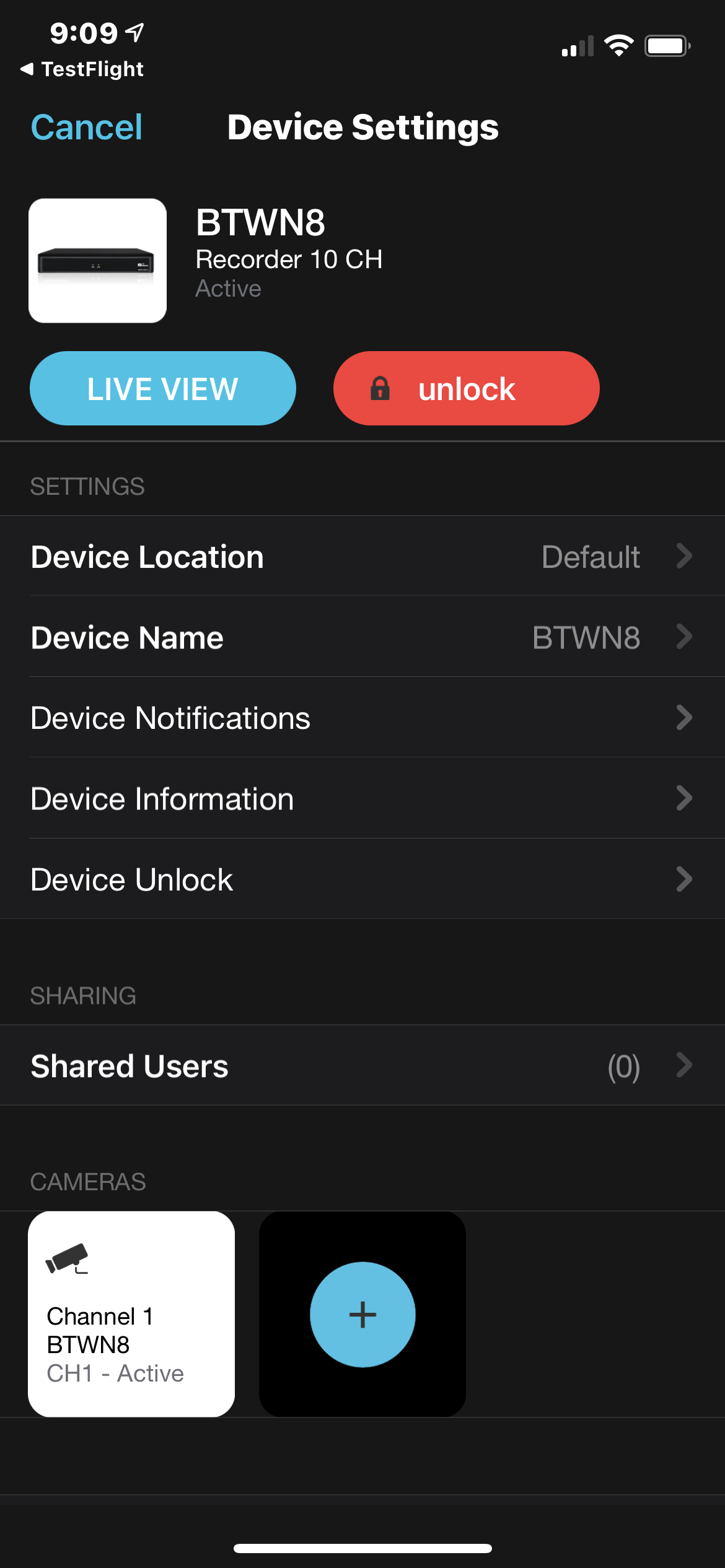
- Tap on the "+" sign to add your wire free camera.

- Ensure your camera is in pairing mode and tap "Continue."
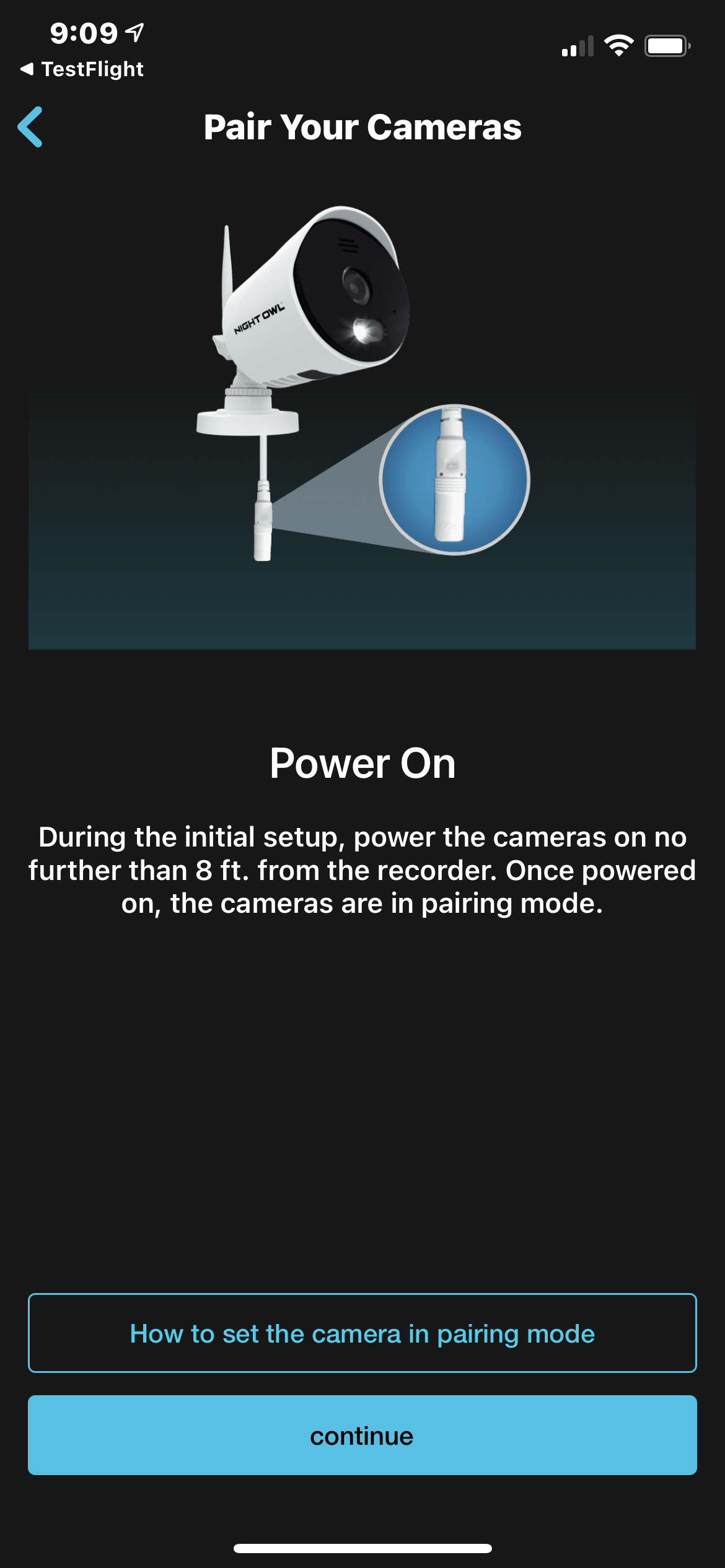
NOTE: Your wire free camera should be in pairing mode once the batteries and cartridge have been inserted into the camera. However, if the camera is not in pairing mode, tap "How to Set the Camera in Pairing Mode" or refer to your wire free camera Quick Setup Guide (QSG).
- The recorder will now search for your wire free camera and will display a list of already paired cameras.
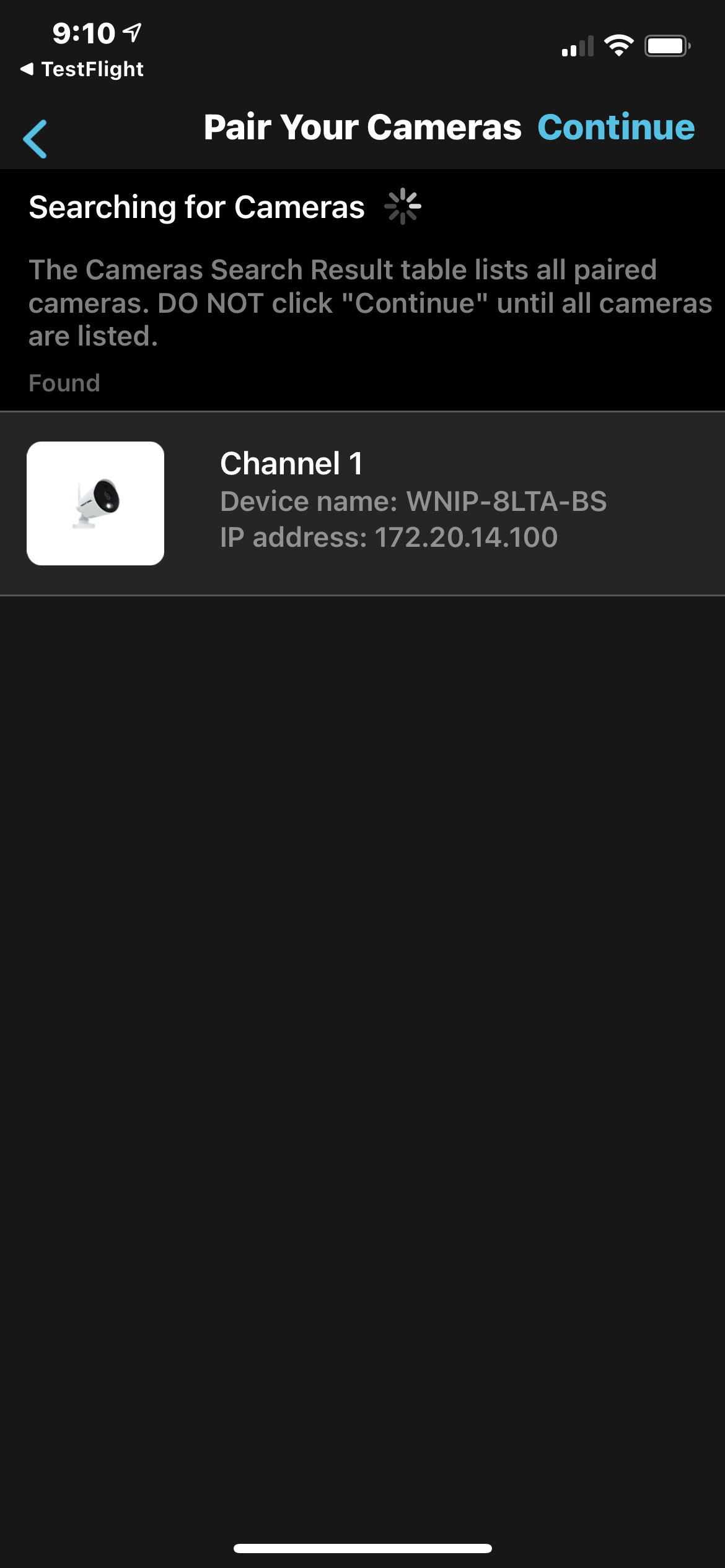
- When the recorder locates your wire free camera, you will hear "Please be patient as camera connects to WiFi".
- Once the camera has been paired, you will hear "Woo Hoo! Setup is now complete!" and the new camera will now show in the list of cameras.
- Tap " Continue " at the top of the page to end the pairing process.
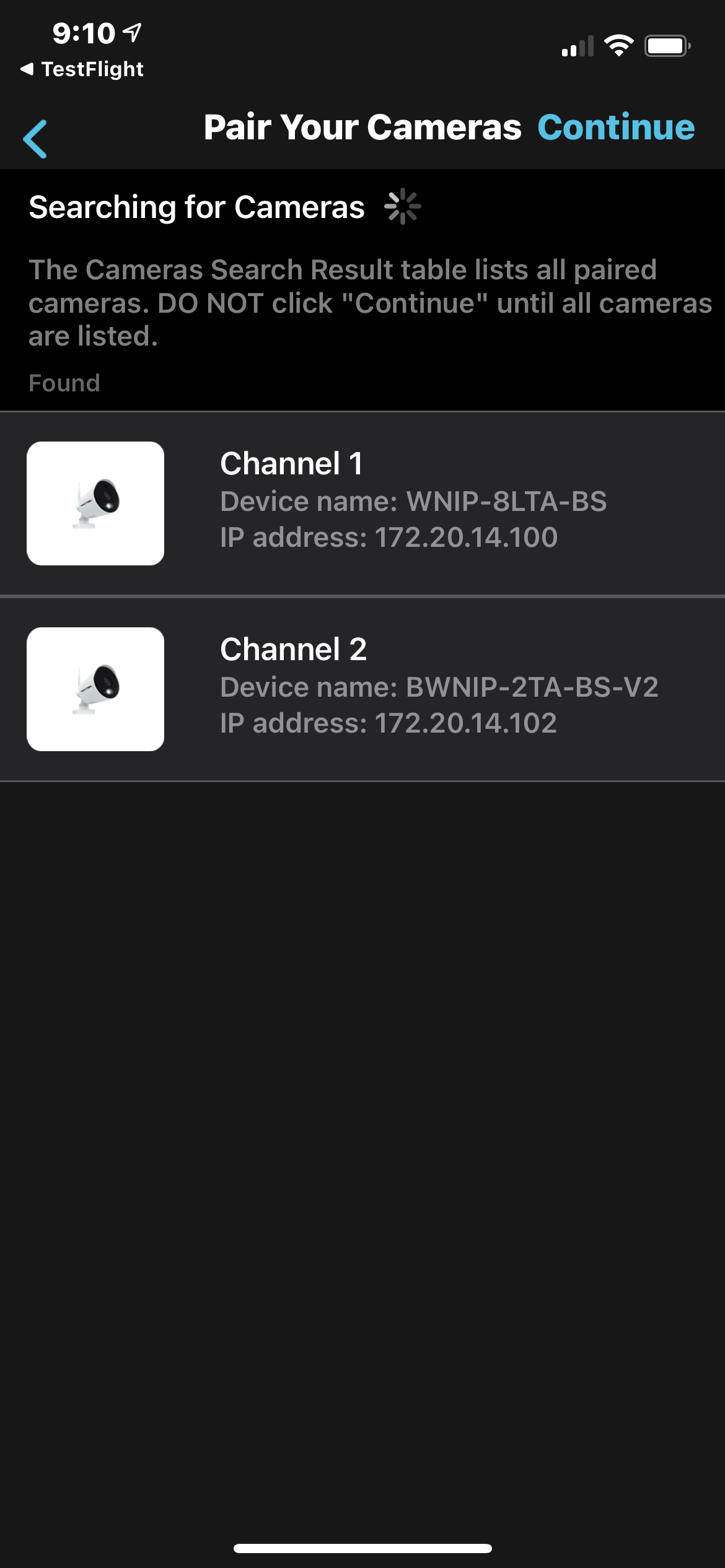
- Verify that you can see the live view of your new wire free camera and tap the "Continue" button.
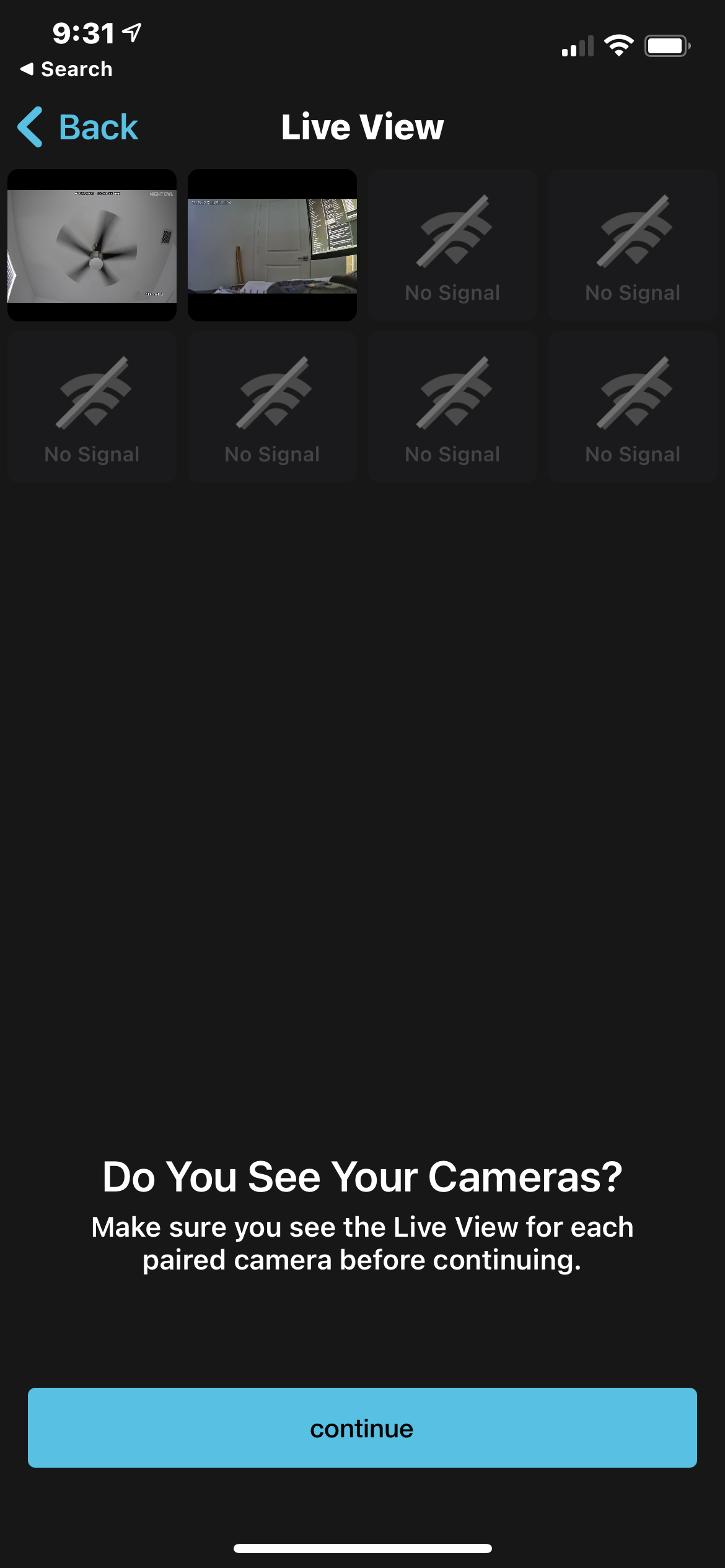
- Return to the Device Settings page for your BTWN8 Series recorder and you will now see the wire free camera is paired. Tap on the camera to begin viewing!