
After you have successfully paired the Doorbell to your Night Owl Protect account/App, if a new firmware upgrade is available for download, the Firmware Upgrade Process begins prior to completing your setup. If there isn’t a new firmware upgrade available, the Doorbell says, “Thanks for checking, but my firmware is up to date.”
To ensure you are running the most up to date version of the device’s firmware, please follow these simple steps.
Before you continue, please ensure you have the following:
- A continuous power source to the doorbell.
- Ensure that your mobile device is connected to a WiFi 2.4Ghz Band.
- Your Mobile device is connected to the same wifi router as the doorbell.
1. Log into the Night Owl Protect Application.
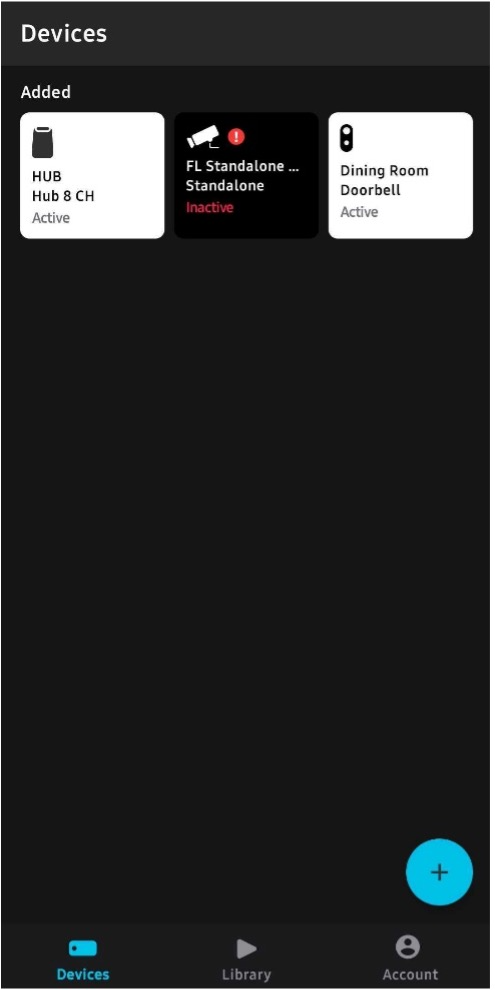
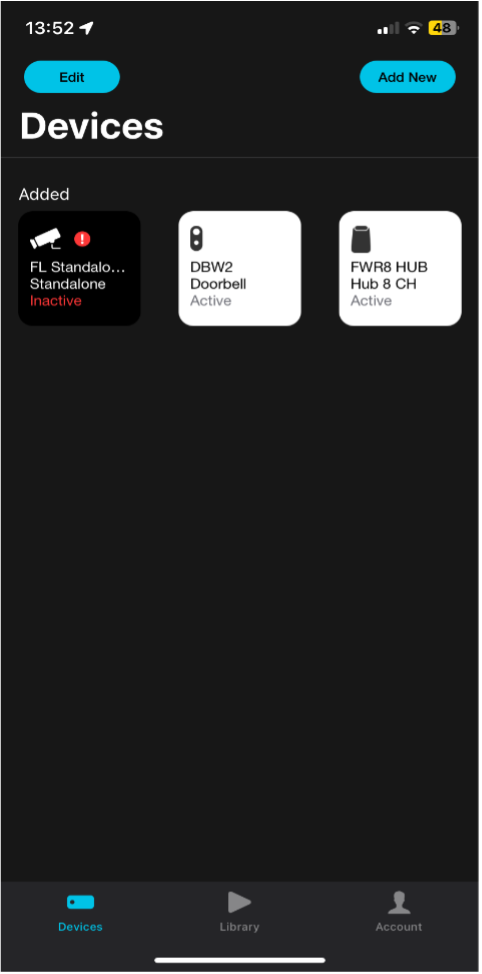
2. On the “Devices List”, tap on your Doorbell that you have added.
Android
iOS
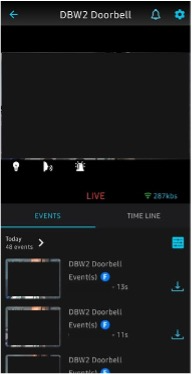
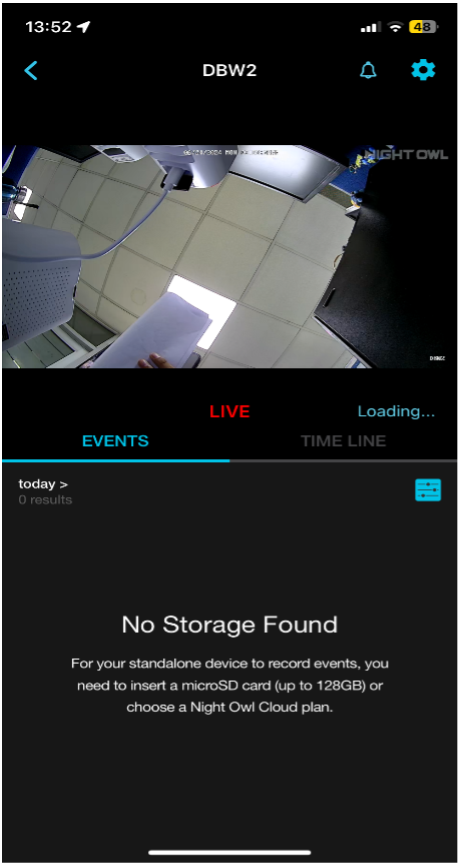
3. Once you have loaded the live view, from the doorbell, tap on the settings “Blue Gear Icon” on the top-right corner.
Android
iOS
4. Next, On the “Device Details Page” Tap on “Camera Information”
Android
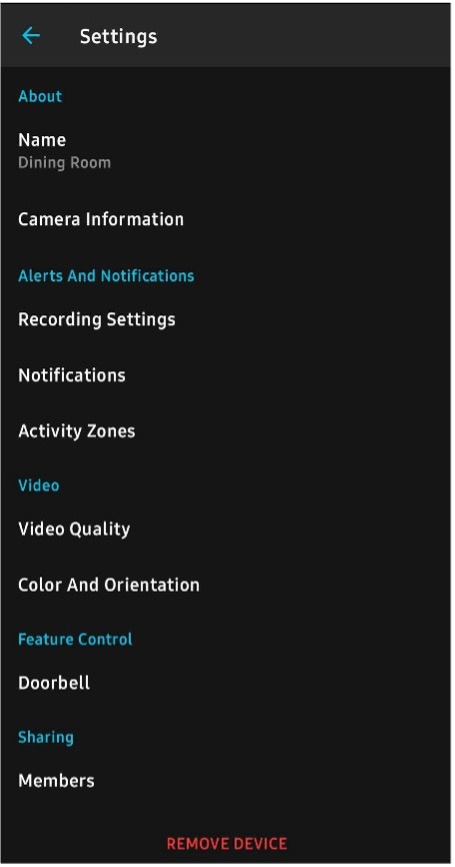
iOS
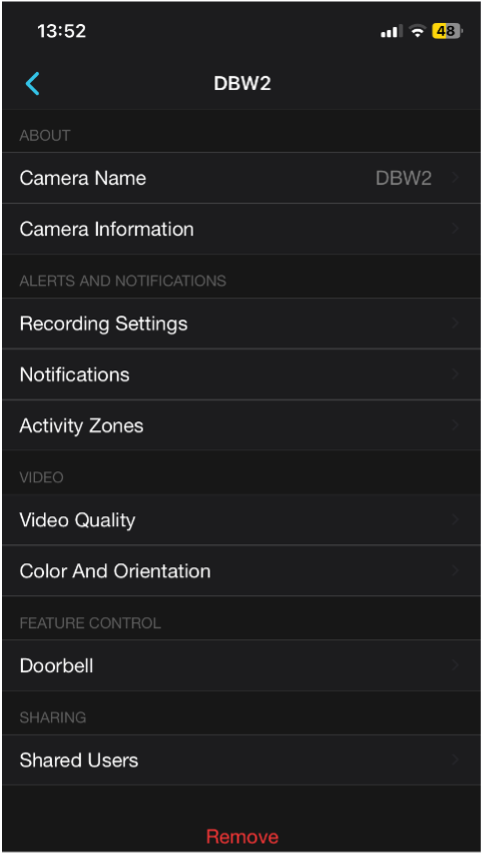
5. Next, Find the Firmware Line. If the line says “Up to Date” that means you are running the latest firmware on your device and no new firmware is available
Android
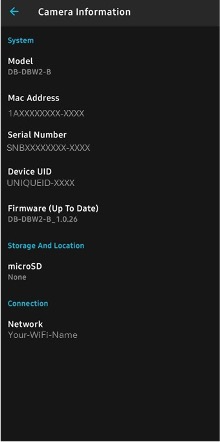
iOS
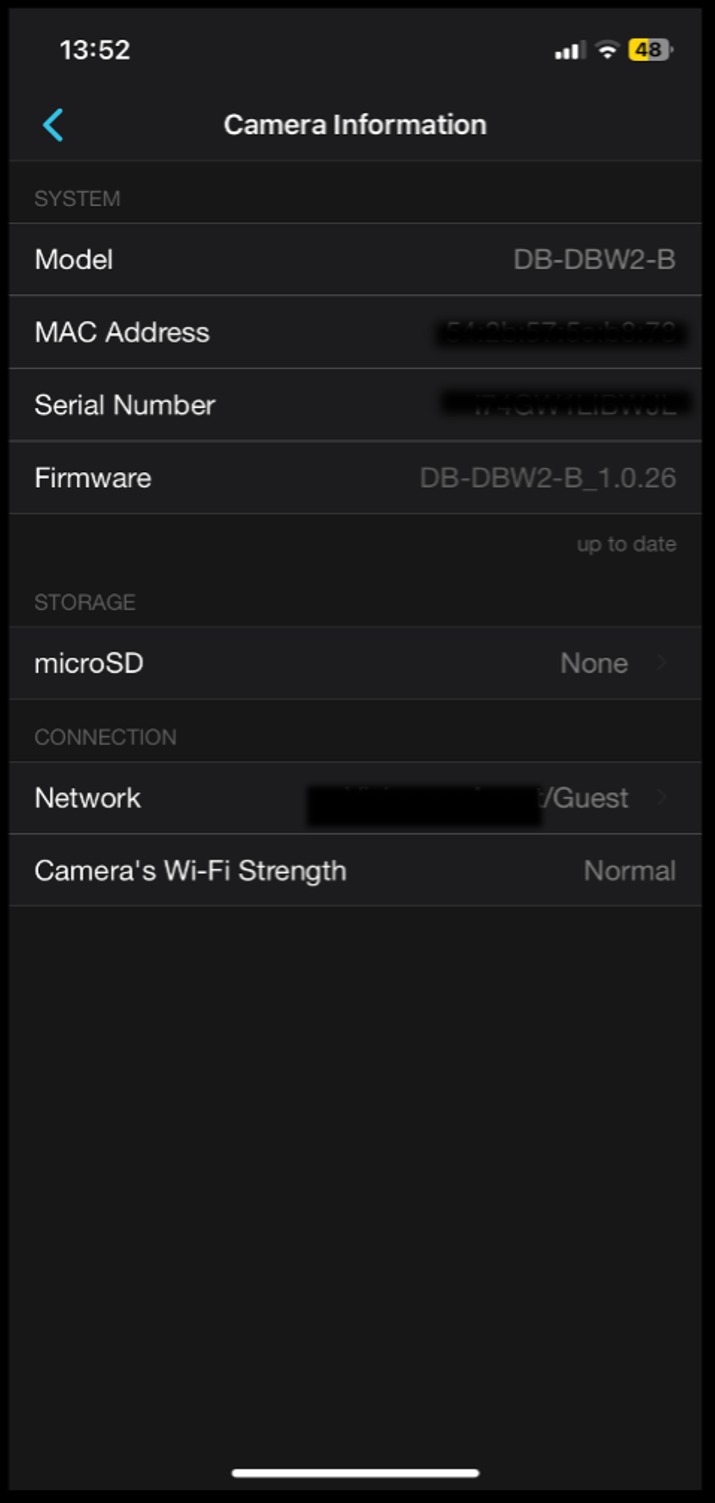
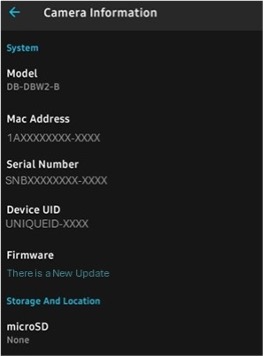
6. If the device information says the following on the firmware line: “There is a new Update”
Android
iOS
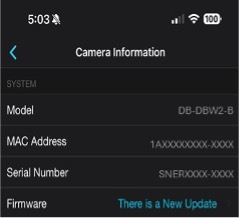
7. Press: “There is a New Update” and the doorbell will start downloading and installing Firmware updates.
8. The updating process may last up to 5 minutes, depending on the WiFi internet speed and coverage to your doorbell.
9. After the doorbell has finished updating it may restart and be back online in the app after it reboots.