
Our plug-n-play wireless chime can easily be added to your doorbell. To setup, please follow the simple steps below
STEP 1: Download the Night Owl App. If you are a first-time user, go ahead and download the Night Owl mobile app. Quickly create an account and log in. Already have an account? Simply log in.
STEP 2: Ensure you have already added your doorbell to your Night Owl Protect App Account. If you need some help adding your doorbell to your Night Owl Protect Account, please click on the link below that matches your Doorbell Model.
Add DBW2 Series Doorbell to Night Owl Protect Account
Add DBH4 Series Doorbell to Night Owl Protect Account
STEP 3: Unbox the chime and choose the location of the outlet you will plug the chime into.
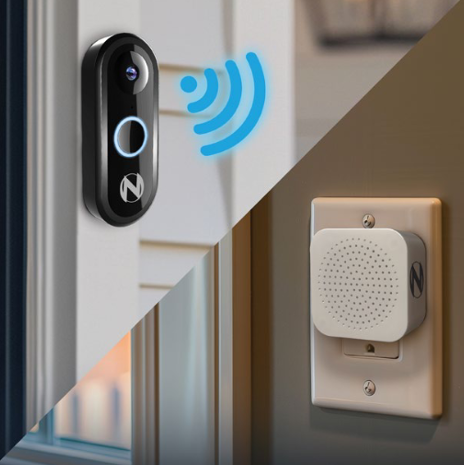
IMPORTANT: You will need to make sure the chime is within range of the doorbell to provide a strong connection but also placed in a central location for optimal sound distribution.
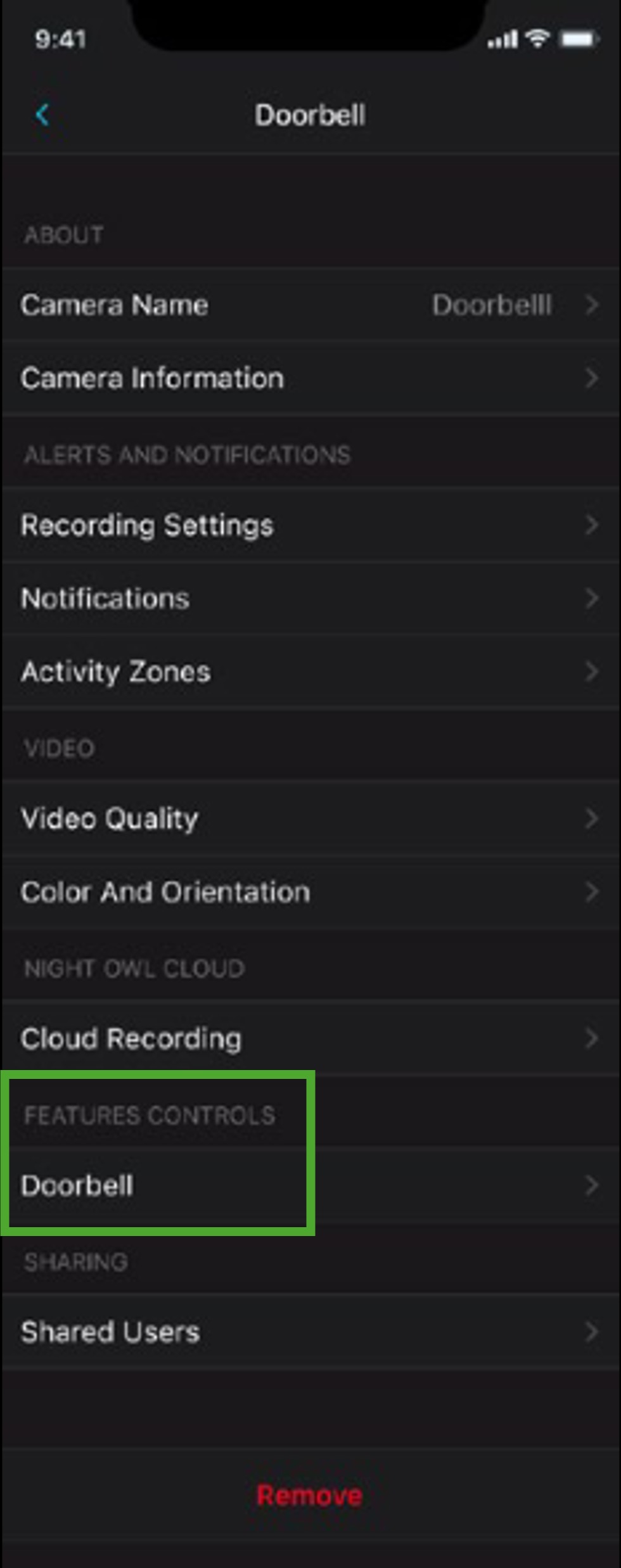
STEP 4: Open the Night Owl Protect App on your smart device and proceed to the settings for your doorbell. Here, tap "Doorbell" under Feature Controls.
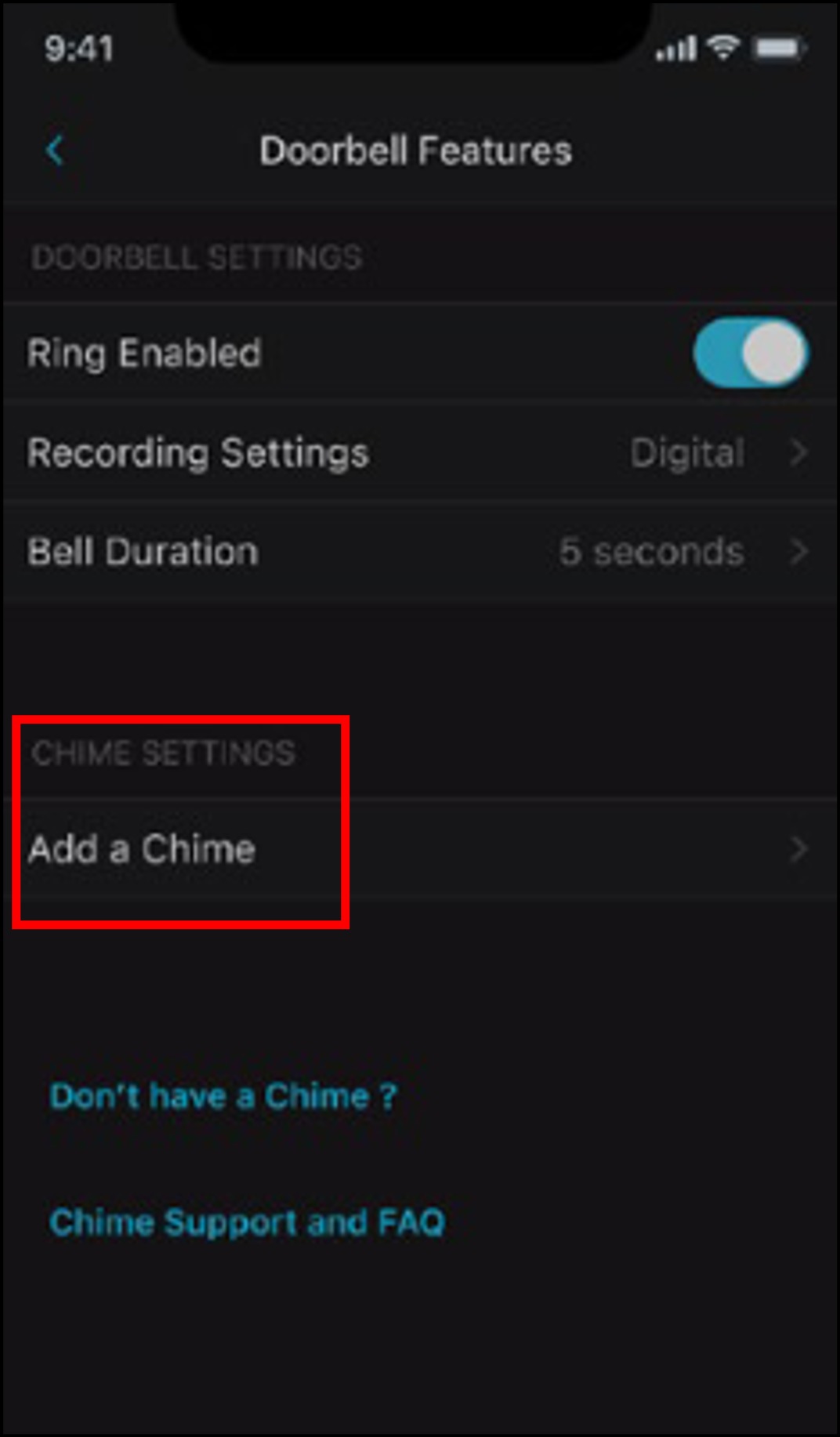
STEP 5: Tap "Add a Chime".
STEP 6: Plug the wireless chime into an outlet and tap "Continue".
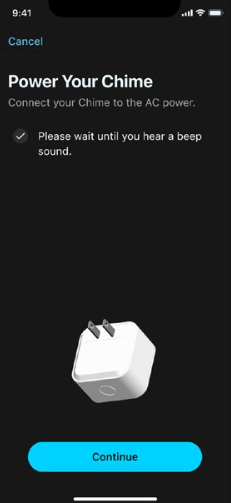
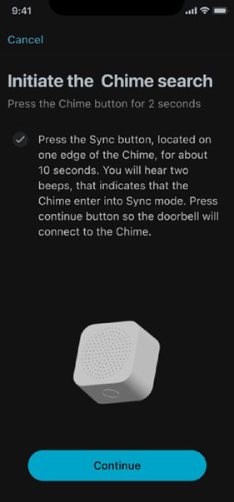
STEP 7: Press and hold the sync button (located on one edge of the Chime) for two seconds. You should hear the chime beep twice indicating it is in pairing mode. Tap "Continue".
STEP 8: The app will now search for the chime. If the doorbell is not able to connect with the chime, you will receive an error message. Please ensure the chime is within range of the doorbell and then tap "Try Again".
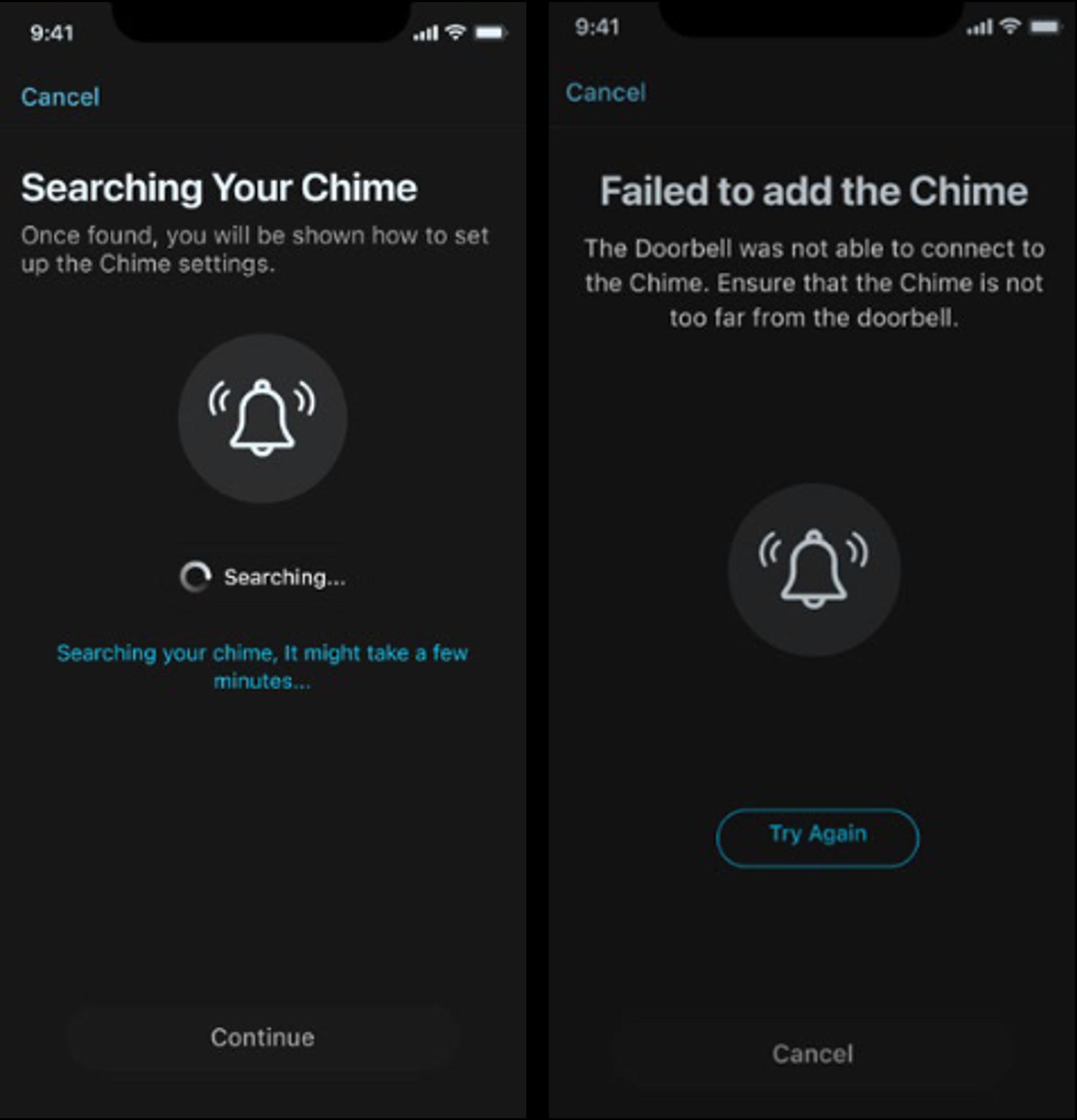
IMPORTANT: You can also try resyncing by pressing the sync button on the chime until you hear 3 beeps, indicating the chime has been reset.
STEP 9: Once you see the chime is connected, tap "Continue".
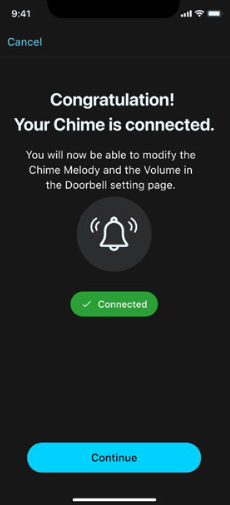
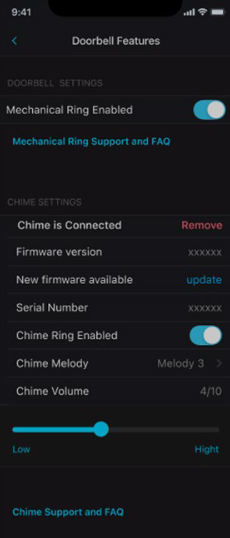
STEP 10: In the final step, you can adjust your settings for the the chime including choosing the melody and chime volume.
Thank you for choosing Night Owl!